
To start with, we’ll list methods that can change your IP manually without any tools.
If you are using Windows 10, you can follow the steps outlined below (Windows 8 and below is similar):
Firstly you need to find out if your ISP has given you a Static IP. If you have a static IP then the only way to change your IP address is to contact your ISP and request that they change it.
You might be able to do this once or twice but you will end up hitting a brick wall. Luckily this is not often the case.
The Simple Method That Is an Overnight Solution
The first method is quite simple, but you have to wait and it doesn’t always work.
- Go to https://www.whatismyip.com/ and note down your IP Address, take a screen shot if easier.
- Then you will need to switch off your Modem and Router and PC for around 8 hours.
- In a lot of cases, simply doing this will change your IP address.
- After 8 hours, turn it all back on and then go and check your IP address again to see if it has changed.
- Open your windows menu by clicking the bottom left Windows icon or the Start Menu
- Find the “Command Prompt” app by searching for it

- Right-Click it and “Run as Administrator”
- When you get a “pop-up” message asking you if it can make changes to your system you click “Yes”
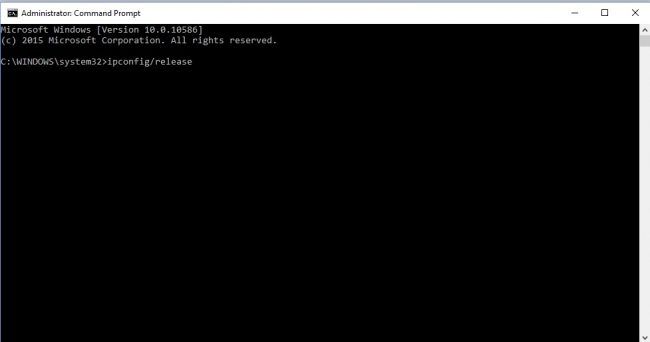
- Your Command Prompt window will now open
- Type “ipconfig /release” and press Enter
- Go to Control Panel by “right-clicking” on the windows icon in the bottom left.
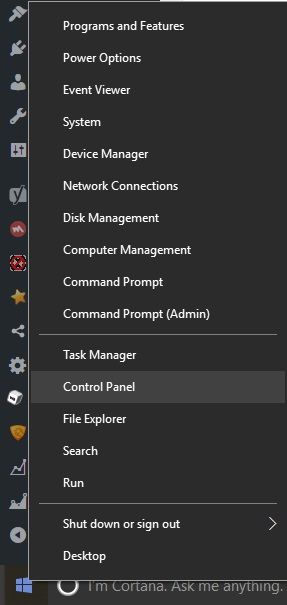
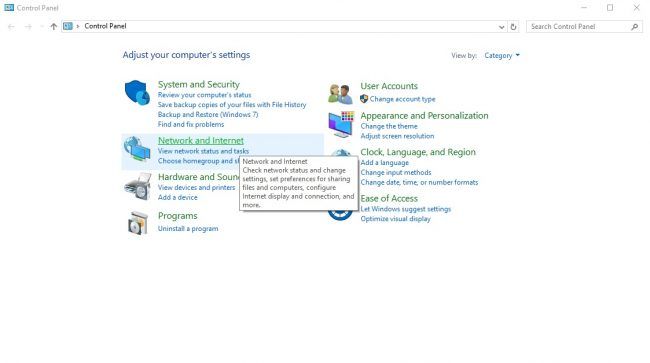
- Click on Network and Internet
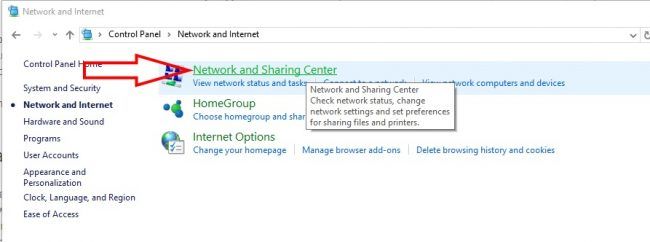
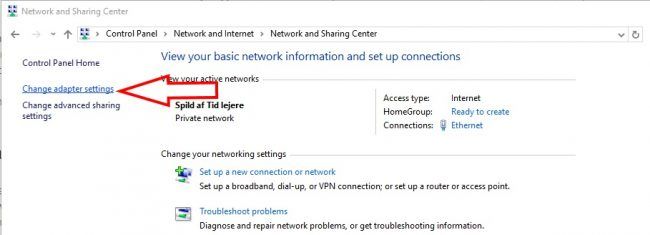
- Click on “Network and Sharing Centre”
- Click on “Change adapter settings” in the left column
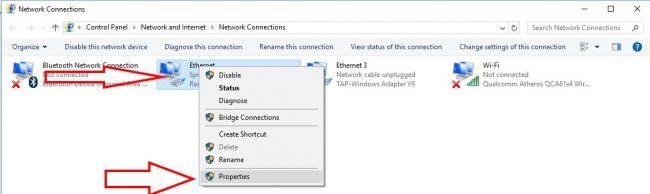
- Righ-Click on the Internet connection of yours (in this case my ethernet connection) and click the properties
- Select “Use the following IP address. Type a new IP address eg 123.123.123.123
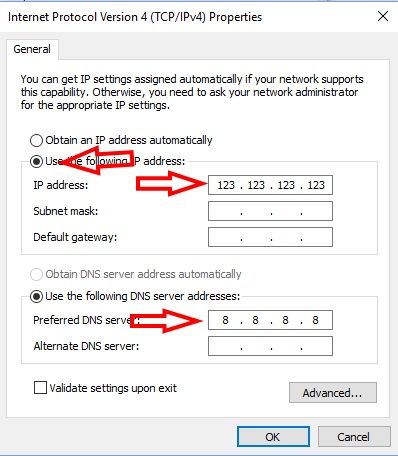
- Change your Preferred DNS Server to 8.8.8.8 (Googles DNS Server)
- Click OK and then do step 11 again
- Select “Obtain an IP address automatically”
- Click “Ok”
- Click “Ok” again
- Restart your PC and you are done!
- Head to https://www.whatismyip.com/ and see if your IP address has changed. If it did not then you probably have a static IP.
Note: Using proxies will change your IP address BUT the proxy you use can see EVERYTHING you do and can intercept all of your data and do what they want with it.
This is why we don’t recommend using proxies for anything other than browsing. NEVER submit anything sensitive or log into any accounts using a proxy.
Don’t bother trying to stream any video or music with a proxy either as the connections are very flakey (drop out a lot) at best and very slow.
- Open Safari and choose Preferences
- Go to Advanced
- Choose the Proxies and Change Settings
- Check HTTP (Web Proxy)
- Get to a new IP address by using a free proxy service
- Copy and Paste the IP address and the port number
- OK and Apply
We really hope we answered everything you wanted to know about how to change you IP Address to another country. If you have any further questions then please write them in the comments section below and we will try and help you out in solving your problem.
If you need to change your IP address to another country, then the simplest and best method is using a VPN, if you want the cheapest way then it is using Tor, and if you don’t care about the location of the IP address and it to be more of a permanent change then do it manually.



0 comments: